Automate Google Ads in this order: verify conversion tracking, decide your limits, start with alerts and approvals, then let rules act on small, capped changes with enough data behind them. And never let two automations control the same setting.
The automation tools you already have
Google Ads offers several layers of automation before any third-party tool is involved:
- Smart bidding (such as Maximize conversions, target CPA or target ROAS) sets a bid for every auction.
- Automated rules change statuses, budgets or bids on a schedule when conditions are met.
- Scripts run your own JavaScript against the account for custom automation.
- Recommendations, some of which can be set to apply automatically.
- Performance Max, which automates placements and much of the targeting across Google’s inventory.
Most automation problems aren’t caused by any single tool. They come from combining them without a plan.
A safe automation checklist
1. Verify conversion tracking first
Smart bidding and any rule based on conversions, CPA or ROAS are only as good as your conversion data. Check that your primary conversion actions fire once per real conversion, count the right thing (a purchase rather than a page view), and carry values where you bid on ROAS.
2. Write down your limits before you automate
Decide the maximum daily spend per campaign, the CPA or ROAS you can afford, and which campaigns automation may never touch (brand campaigns, for example). Automation should enforce these limits, not discover them.
3. Start with alerts and approvals
Run new rules in “notify” mode first. After a couple of weeks of alerts that match what you would have done, let the rule act on its own.
4. Use enough data
Judging a campaign on a single day or a handful of clicks produces random decisions. Use look-back periods and minimum thresholds (for example, “at least 50 clicks” or “spend above 2× target CPA”) before a rule pauses anything.
5. Cap every change
Prefer several small budget changes over one large one. Large, frequent edits can restart smart bidding’s learning period and make performance swing.
6. Give each setting one owner
If smart bidding manages bids, don’t also run bid rules. If a rule manages a campaign’s budget, turn off auto-applied budget recommendations for that campaign. One owner per setting keeps results explainable.
7. Exclude what must not change
Keep brand campaigns, seasonal launches and tests with fixed budgets out of rules that pause or reallocate spend.
8. Review the change history
Check the account’s change history and your automation tool’s activity log regularly. If you can’t say why a campaign changed, the rule needs fixing.
Example rules that are hard to get wrong
- Alert: notify me if a campaign’s spend today is above 150% of its daily budget.
- Pause: pause a non-brand campaign if CPA is above 2× target with at least 50 clicks in the period.
- Approval: ask me before increasing budget by 20% on campaigns whose ROAS is above target.
Automating Google Ads with OrivenAI
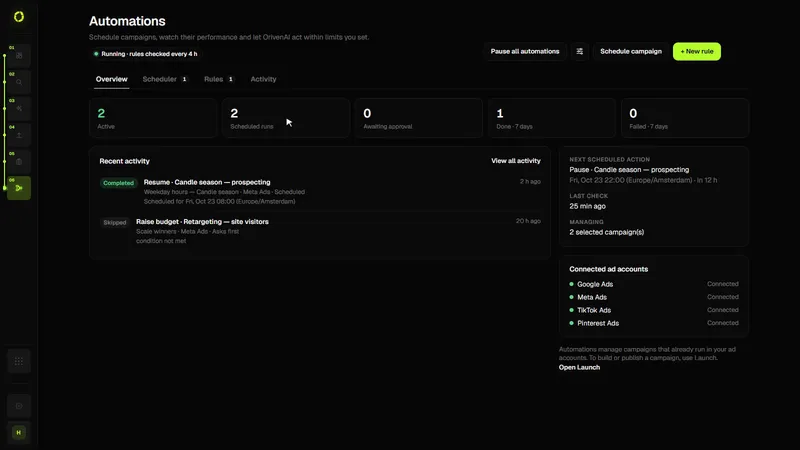
OrivenAI connects to your Google Ads account through Google’s official API. Create builds Search, Performance Max and Demand Gen campaigns from a brief; Launch shows each draft’s readiness and publishes only when you choose; and Automations (from the Starter plan) apply schedules and rules that can pause, resume or adjust budgets within a maximum you set, or notify you and request approval first. Shared budgets are never changed, and Control Center flags accounts where conversion tracking can’t be verified. See OrivenAI for Google Ads and PPC automation in OrivenAI.
Sources
Official documentation this guide relies on, last checked . Platforms change their rules often; check the source before you rely on a number.